
Want to display your Nintendo Switch OLED gameplay on your computer without using a traditional capture card? In this article, I’ll share my experience setting up SysDVR-Client 6.3 to stream gameplay from my Nintendo Switch OLED to my PC.
To demonstrate how the setup works, I also played Mario Tennis Aces with my daughter, Ori Player 2, using a PlayStation 5 DualSense controller and a PlayStation 4 DualShock 4 (DS4) controller connected to our Nintendo Switch OLED.
This is both a look at my SysDVR setup and a fun father-and-daughter gaming experience!
What Is SysDVR-Client 6.3?
SysDVR is a free, open-source homebrew application that allows compatible Nintendo Switch consoles to stream gameplay video and audio to a computer over USB or a network connection.
With SysDVR-Client 6.3, users can view supported Nintendo Switch games directly on their PC, making it a useful tool for gameplay demonstrations, recording, and content creation.
Unlike traditional HDMI capture devices, SysDVR uses software-based streaming. However, it requires a compatible Nintendo Switch running custom firmware and the appropriate SysDVR components.
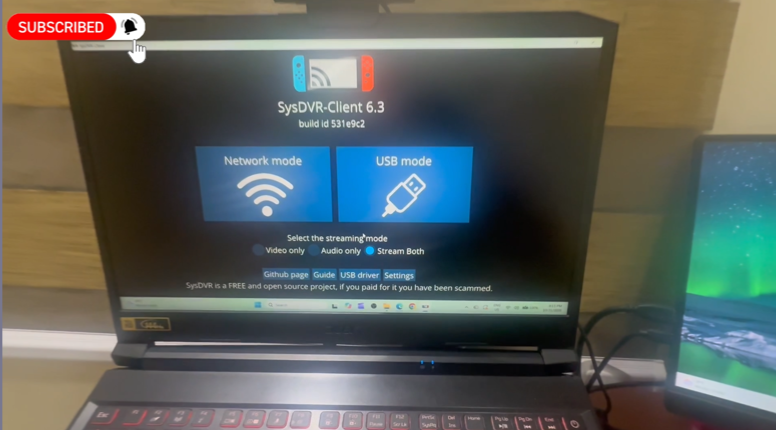
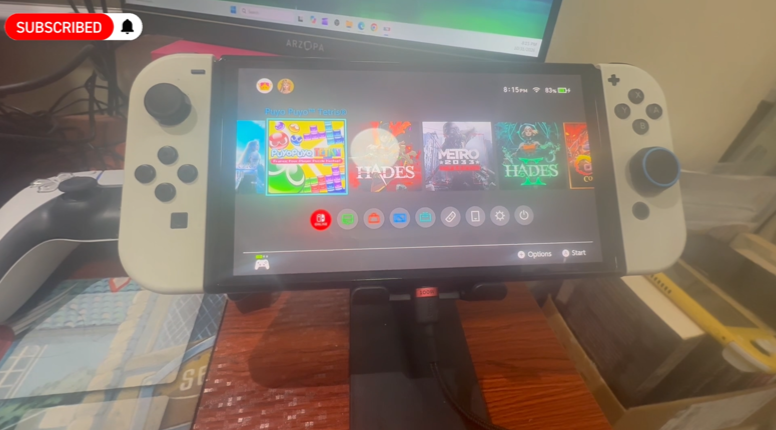
My Nintendo Switch OLED and SysDVR Setup
For this demonstration, I used my Nintendo Switch OLED with SysDVR installed and SysDVR-Client 6.3 running on my Windows PC.
The client provides two connection options:
- Network Mode: Streams gameplay from the Nintendo Switch to a computer over a network connection.
- USB Mode: Streams gameplay using a USB connection between the Nintendo Switch and the computer.
SysDVR-Client 6.3 also provides options for video-only streaming, audio-only streaming, or streaming both video and audio.
For my setup, I explored the USB connection to display the Nintendo Switch OLED screen on my computer.
Download SysDVR-Client 6.3
If you’re interested in trying a similar setup, here are the files used in my demonstration:
SysDVR-Client 6.3 — Windows PC Client
SysDVR-USB-Only — Nintendo Switch Component
For official documentation, additional installation instructions, and software updates, visit the SysDVR GitHub repository.
Important: SysDVR requires a compatible custom firmware environment. Not all Nintendo Switch consoles support this setup, and not all games are compatible with SysDVR streaming. Review the official documentation before installation. The download links above are my shared files; use the official GitHub repository to verify releases and compatibility.
Testing SysDVR with Mario Tennis Aces
Once the setup was ready, it was time to test the streaming experience with an actual game.
And what better way to do that than by playing Mario Tennis Aces with my daughter, Ori Player 2?
Rather than simply displaying the Nintendo Switch home screen, I wanted to demonstrate SysDVR with real gameplay to show how it performs during a gaming session.
Mario Tennis Aces was our game of choice. Its colorful graphics and fast-paced tennis matches provided an enjoyable way to showcase the screen-casting feature.
Most importantly, the gaming session gave me another opportunity to spend quality time with my daughter while sharing one of our favorite hobbies.
Using PS5 DualSense and PS4 DualShock 4 Controllers
Another interesting part of our setup was the use of PlayStation controllers on the Nintendo Switch OLED.
For our Mario Tennis Aces session, we used:
- PS5 DualSense Controller
- PS4 DualShock 4 (DS4) Controller
Both controllers were connected to our Nintendo Switch OLED through our controller setup.
This allowed us to enjoy the game using familiar PlayStation controllers while demonstrating the SysDVR screen-casting feature.
Please note that these controllers are not natively supported by the Nintendo Switch. Compatible adapters or other supported controller-connection methods may be required.
Watch Our SysDVR Setup and Mario Tennis Aces Vlog
If you want to see SysDVR-Client 6.3 in action, check out our video demonstration!
In the video, I showcase my SysDVR setup, how I use it to display Nintendo Switch OLED gameplay on my PC, and our Mario Tennis Aces gaming session featuring Ori Player 2.
Watch the full video on YouTube:
Whether you’re interested in Nintendo Switch screen casting, experimenting with SysDVR, or simply watching a father-and-daughter gaming vlog, I hope you’ll enjoy our video!
Need Help Setting Up SysDVR?
If you’re having trouble installing SysDVR-Client 6.3, connecting your Nintendo Switch OLED to your computer, or getting USB streaming to work, feel free to reach out.
You can leave a comment on our YouTube video or send me a private message through my Facebook page:
I’ll do my best to help based on my experience with the setup.
Final Thoughts
SysDVR-Client 6.3 provides an interesting way to stream compatible Nintendo Switch gameplay to a PC without relying on a traditional HDMI capture card.
For content creators and Nintendo Switch enthusiasts who already have a compatible custom firmware setup, it offers another option for displaying gameplay on a computer.
For me, however, the highlight of this experience wasn’t just getting SysDVR to work. It was being able to test the setup while enjoying Mario Tennis Aces with my daughter, Ori Player 2.
Technology is more enjoyable when we get to share the experience with the people we love.
If you found this article helpful, don’t forget to like our YouTube video, subscribe to our channel, and follow us for more gaming tutorials and father-and-daughter adventures!
Happy gaming! 🎮
#SysDVR #SysDVRClient #NintendoSwitchOLED #NintendoSwitch #SwitchScreenCasting #SwitchToPC #MarioTennisAces #NintendoSwitchTutorial #GamingVlog #OriPlayer2